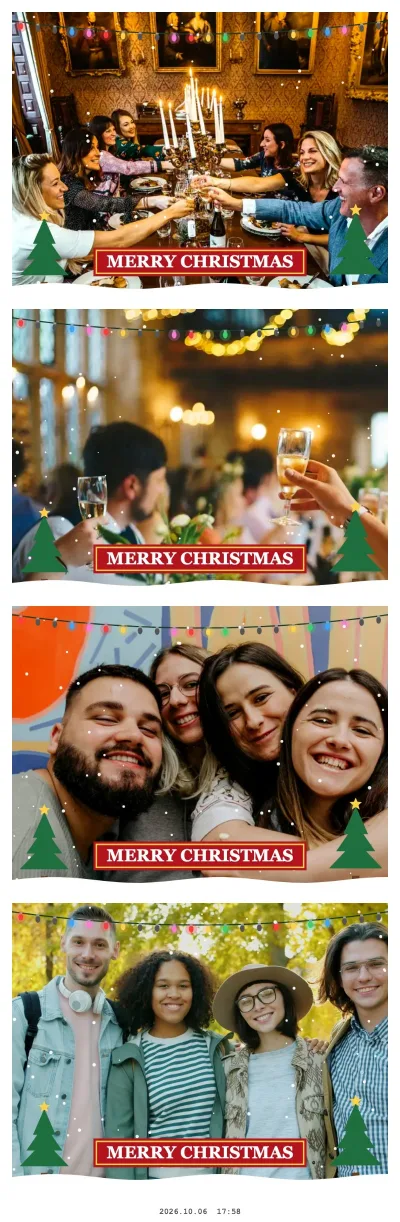
What the Christmas effect draws
Everything is drawn onto the frame in your browser, live, before the shot is taken:
- a string of lights in five colours sagging across the top
- falling snow, kept away from the centre so faces stay clear
- two fir trees with gold stars and a snow bank along the bottom
- a red ribbon with a gold keyline carrying your text in white capitals — "Merry Christmas" if you leave the field empty
Swap the greeting for "Happy Holidays", "Season's Greetings", a family name or the party's name. The effect is in the effect list all year; from 20 November to 6 January it also joins Random mix, which gives each of the four shots a different effect.

Christmas effect · single shot
Try this look
Christmas effect · single shot
Try this look
Make a photo Christmas card in the booth
The Postcard layout (A6 landscape) is a ready-made card front. Four shots of the same group feel more personal than one posed portrait:
- Choose Christmas and the Postcard layout, and type your family name as the text — it goes on the red ribbon of every shot.
- Switch on "Add text + date under the collage" to repeat the name with the date as a caption under the four photos.
- Plan the four frames: everyone, the kids alone, the pets, one silly shot.
- Download the JPEG and send it in a messenger, or print it. The Print button opens the dialog at about A6 (148×115 mm). At a photo kiosk, order 4×6 in and choose "fit", not "fill", so nothing is cropped.
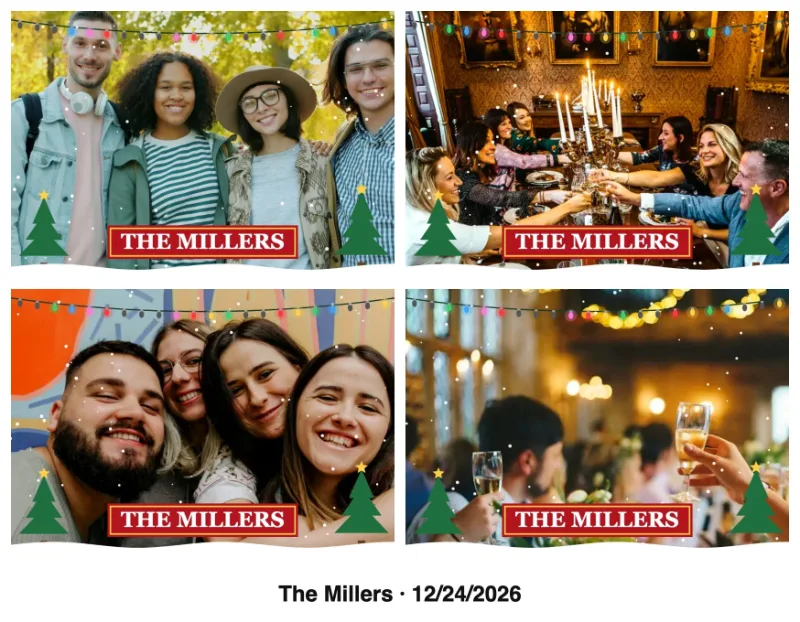
Christmas effect · Postcard with caption
Try this look
Family Christmas at home
Put a laptop or tablet on a shelf at face height, with a lamp behind it pointing at the sofa or the tree. Set the countdown to 10 seconds so the person who taps Start can join the picture. Three generations in one frame work best in two rows: the youngest and oldest seated in front, everyone else standing behind.
Switch on "Keep every collage on this device" for the holidays. Each strip is stored on that device only, and on 27 December you download them all as one ZIP and send each household its own pictures. Once the page has been opened, the booth also runs without Wi-Fi — handy at grandparents' homes with a weak connection.
Ugly-sweater party and Christmas games
A sweater line-up is made for the 2×2 square: four quick poses, one collage per guest, easy to post in the group chat afterwards. Set the text to "Ugly Sweater Party" and let everyone vote on the strips at the end of the night.
For games, use Challenge mode: before every shot it shows a random pose task with a 10-second countdown. In December, Random mix brings the Christmas look into the rotation alongside Party, Magazine cover and the funnier effects.

Christmas effect · 2×2 square
Try this look
Office Christmas party
For a team party, run the booth on a laptop in event mode: one big start button, locked settings, the screen stays on, and the booth resets itself for the next group. Photos are not uploaded anywhere — each group downloads its own strip, so there is no shared cloud folder to manage afterwards. The office Christmas party photo booth guide covers setup, props, a privacy notice and the rent-or-DIY decision in detail.
Print Christmas strips and frames
The Print button sizes the page for you: 2×6 in for the Column strip, 5×5.5 in for the Square, about A6 for the Postcard. For standard 4×6 in photo paper, choose 2 strips on 4×6 in in the Print menu of a Column strip: two copies side by side with cut marks, or Save 4×6 sheet (JPEG) for a photo kiosk — the photo strip maker has all sizes. The free Christmas strip template adds a green-and-red printed frame with "Merry Christmas" around four transparent windows.